
DOCUMENTATION
Export
Turn one Markdown source file into the format you need to deliver, publish, or archive. Run an export from the Export menu or with a keyboard shortcut.
Export formats
| Format | Backend |
|---|---|
| MarkNice workspace | Built-in (for preparing rich content for WeChat) |
| Markdown | Built-in |
| HTML (styled) | Built-in |
| Plain HTML | Built-in |
| LaTeX | Built-in (rich inline styling, table alignment, lstlisting code blocks) |
| Built-in layout engine by default; optional Pandoc | |
| DOCX | Built-in writer by default; optional Pandoc |
| PNG / JPEG | Built-in (document layout snapshot) |
PDF & DOCX backends
PDF and DOCX use built-in engines by default, with no external tools required. Choose Pandoc in Preferences → Export to use the external toolchain. Only that setting attempts Pandoc, falling back to the built-in engine if tools are missing or conversion fails. The status bar identifies the actual backend and reports write failures.
- The built-in PDF engine supports CJK and Latin typography, embedded images, highlighted code, tables, footnotes, and vector math, with inline formulas aligned to the text baseline.
- Built-in PDF / DOCX embed resolvable local images, prefetched remote images, and data URIs. GIF / WebP become PNG; SVG is rasterized for DOCX. Unresolved images retain alt text and their URL. Built-in DOCX math still uses readable text approximations.
- PNG / JPEG reuse the PDF layout model to create a continuous document image with real fonts, CJK text, headings, tables, code, and images. They are not screenshots of the editor window.
Export configuration
Set the backend, PDF page size, margins, table of contents, and page numbers in Preferences → Export or the config file. pdf_engine applies only to the Pandoc backend:
[export]
backend = "builtin"   # "builtin" (default) | "pandoc"
pdf_engine = "xelatex"   # alternatives: "pdfroff", "tectonic", ...

[export.pdf]
page_size = "a4"      # "a4" | "letter" | "legal"
margin_mm = 25        # page margin in millimetres
toc = false           # table of contents
page_numbers = true   # footer page numbers
DOCX options now live in Preferences → Export, so exporting goes straight to choosing a destination. Select A4 / Letter / Legal, a table of contents (Pandoc only), and an image policy: embed images or use alt: url text. Settings persist in the config file:
[export.docx]
page_size = "a4"              # "a4" | "letter" | "legal"
toc = false                   # table of contents (pandoc engine only)
image_policy = "embed"        # "embed" | "text-fallback"
Two more DOCX-related keys live in the [export] section: pandoc_path (explicit pandoc binary; unset = system PATH) and reference_doc (a pandoc --reference-doc styling template; unset or missing files fall back to the bundled template):
[export]
backend = "pandoc"
pandoc_path = "C:/tools/pandoc.exe"       # optional
reference_doc = "templates/my-style.docx" # optional
YAML front matter title / author / date feed into export metadata: HTML <meta> tags, DOCX document properties, and the LaTeX preamble. For DOCX-specific pandoc customization or advanced PDF templating, install pandoc plus a LaTeX engine (e.g. xelatex from TeX Live / MiKTeX, or pdfroff from groff).
Publish for WeChat (MarkNice)
Choose Export → Publish for WeChat (MarkNice)and Markion takes one immutable snapshot of the active in-memory text—including unsaved edits—and opens a private loopback workspace in your default browser. The workspace runs locally, so styling does not require uploading your document.
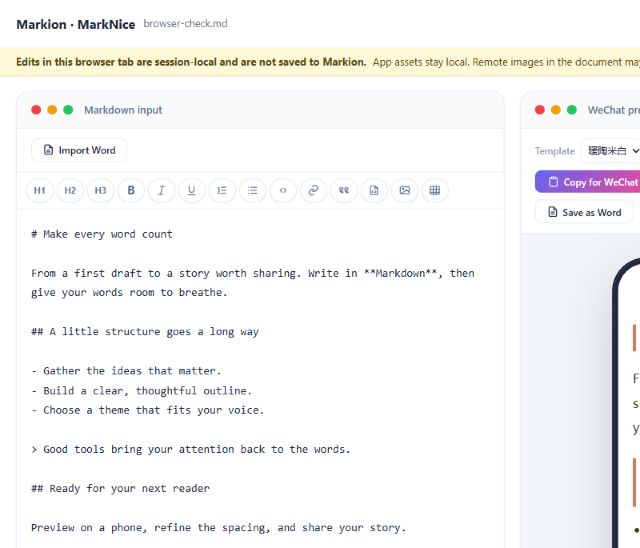
The refreshed workspace provides two-pane editing, a formatting toolbar, 15 themes, font-size and paragraph-spacing controls, and desktop / phone previews. Math uses self-contained inline SVG suitable for WeChat drafts.
- Word import. Convert .docx into Markdown in the current browser session. Use Copy MD to bring it back to Markion.
- Multiple outputs. Copy for WeChat, Copy MD, save HTML or Word, or print the current themed preview to PDF. Browser Word / PDF output is a separate workflow from native Markion exports.
- Offline application assets. The editor, all 15 pinned MarkNice themes, marked, MathJax SVG, CSS, and fonts are packaged with Markion and load without external networking.
- Browser edits never write back. Edits made in the browser are session-local: there is no endpoint that saves them to Markion. Return to Markion to make durable edits and launch again for a new snapshot.
- Local images are explicitly excluded. Managed images under the saved document's
<document>.assetsdirectory are available only through authenticated opaque resource IDs and browser blob URLs: they can be previewed but cannot survive a paste into WeChat. When local images are present, copying offers cancel or an explicit copy-without-local-images choice and reports the omitted count. Missing, untitled, out-of-scope, and newly typed local paths remain unresolved. - Remote images keep their normal behavior. Remote HTTP(S) images may still contact their authored hosts (disclosing the browser's IP address to them); requests carry no referrer from the workspace.
- Clipboard permission. The browser needs clipboard permission for the preferred
text/htmlplustext/plainpath; a selection-based fallback is used where the richer API is unavailable. - Sessions expire after two hours. A session expires after two hours without an authenticated request, and at most eight snapshots are retained. Relaunch from Markion after expiry; re-allow the clipboard permission if it lapses.